See the field.
Not the noise.
Clean, safe, self-updating overlays for your games — read-only, never injected. Pick your game to get started.
Now available: Odin’s Eye, the Dark Age of Camelot (DAoC) overlay with a real-time map view, for the Eden freeshard and the Blackthorn freeshard.
All our paid products come with 1–3 hours of full free trial. Try before you buy.
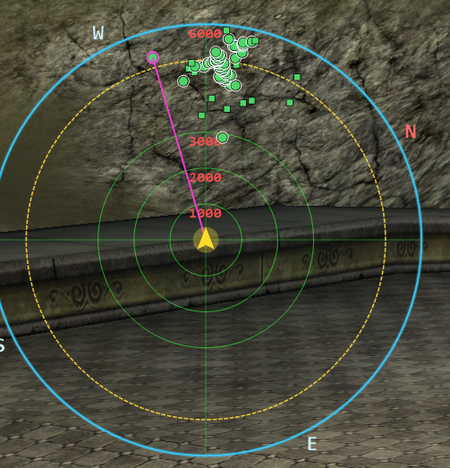
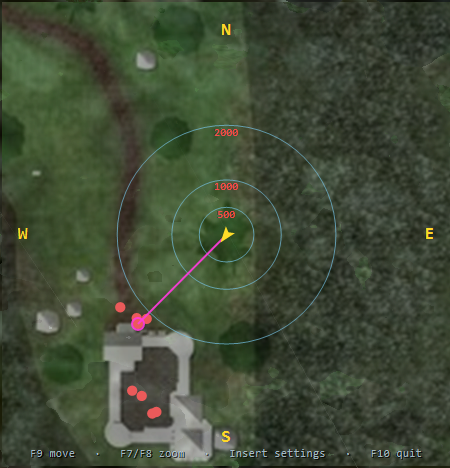
Odin’s Eye running live — nearby players, mobs and your target, in real time. More screenshots →
Odin’s Eye — Eden
The Dark Age of Camelot overlay for DAoC on the Eden freeshard (private server) — a real-time radar and map overlay showing nearby players and mobs. Two views, one hotkey, locked to your PC.
No payment to try it — and your free trial only starts when you first launch it in-game.
Now — DAoC Eden · Also live — DAoC Blackthorn · Soon — other DoL freeshards
Two overlays
Simple Eye’s dial or Overwatch’s full-zone map — swap live with a keypress.
Portable & self-updating
No installer — extract and run. Updates itself, and only ever reads the game, never writes.
Yours, locked down
Keyed to your hardware. Move it to a new PC yourself, any time.
Currently verified in the frontier and battleground zones. Home realm zones (capitals, starter areas and the rest) are supported and should work too — a few may still be rough around the edges while we finish verifying them, with more polish landing in regular updates.
Pay with PayPal. Your license activates the moment payment clears and lasts 30 days — renew anytime by paying again.
See both overlays running live, with their settings.
Setup, both overlays explained, default hotkeys, troubleshooting.
How-tos and explainers — pick your game, then your server.
Every release of Odin’s Eye — Eden, newest first.
Question or problem? Open a support ticket — track our reply in your account.
Odin’s Eye — Blackthorn
The Dark Age of Camelot overlay for DAoC on the Blackthorn freeshard (private server) — a real-time radar and map overlay showing nearby players and mobs. Two views, one hotkey, locked to your PC. A separate build tuned for Blackthorn’s client.
No payment to try it — and your free trial only starts when you first launch it in-game.
Now — DAoC Blackthorn · Also live — DAoC Eden · Soon — other DoL freeshards
Two overlays
Simple Eye’s dial or Overwatch’s full-zone map — swap live with a keypress.
Portable & self-updating
No installer — extract and run. Updates itself, and only ever reads the game, never writes.
Yours, locked down
Keyed to your hardware. Move it to a new PC yourself, any time.
Built for Blackthorn’s full Dark Age of Camelot zone set, including the Old Frontiers. Some home-realm zones may still be rough while we finish verifying them, with more polish landing in regular updates.
Pay with PayPal. Your license activates the moment payment clears and lasts 30 days — renew anytime by paying again.
See both overlays running live, with their settings.
Setup, both overlays explained, default hotkeys, troubleshooting.
Blackthorn how-tos and explainers.
Every release of Odin’s Eye — Blackthorn, newest first.
Question or problem? Open a support ticket — track our reply in your account.
Get access — $20 for 30 days
Pay with PayPal (a card works too — no PayPal account needed). Your Odin’s Eye Eden license is created and assigned to your account the moment the payment clears, valid for 30 days. There’s no auto-charge — renew whenever you like by paying again, and any remaining time is added on top.
Questions before you buy? info@gameoverlay.net
Get access — $20 for 30 days
Pay with PayPal (a card works too — no PayPal account needed). Your Odin’s Eye Blackthorn license is created and assigned to your account the moment the payment clears, valid for 30 days. There’s no auto-charge — renew whenever you like by paying again, and any remaining time is added on top.
Questions before you buy? info@gameoverlay.net
Try it free for 3 hours
No payment needed. Your hour only starts when you first launch the overlay in‑game — downloading and setup never eat into it, so take your time.
- Claim your key below.
- Download, unblock the zip, run
Application.exeas admin. - Launch the game, then start the overlay — now your free 3 hours begin.
Create your account
One login for every GameOverlay app — just a username and password. No email needed, but adding one is recommended: it’s your safety net for recovering your username or resetting your password if you ever get locked out. Either way, stay stealthy — don’t reuse anything tied to your in-game identity.
Add an email and we can help you recover your username and reset your password if you’re ever locked out. Leave it blank to stay fully anonymous.
You’ll be prompted to add two-factor security — optional for 3 days, then required. It also lets you reset your own password anytime if you forget it.
Set a new password
Choose a new password for your account. This link works once and expires 30 minutes after it was sent.
Keep me signed in?
Stay signed in on this device so you don’t get locked out. Handy if you used a random username — you can always come back here to see your account and license details. Skip it on a shared or public computer.
Shown next to your posts in the community. Square works best; it’s resized automatically.
My Overlays & Applications
The overlays and apps on your account — open one to manage it.
My Overlays & Applications
The overlays and apps on your account — open one to manage it.
Two-factor security
With two-factor on, you can reset your own password anytime using your authenticator. If you added a recovery email you can reset by email too. With neither on file, a forgotten password can only be reset by an admin.
Recovery email
Optional — lets you reset your username & password by email. Current: —
Password & sessions
Change your password, or sign out on every device at once.
Support tickets
+ New ticketMessage the team and track replies right here — no email needed. We’ll always reply in the ticket.
—
Redeem a code
Purchase history
—
Your data
We hold only your username, an optional recovery email, your license and payment history. Take it or erase it any time.
Need a hand? info@gameoverlay.net
Odin’s Eye
This key is unique to your overlay. You normally never need it — the app signs in with your account — but it’s here if support ever asks.
Download & run
Download the latest build, unblock the zip, then run Application.exe as administrator. Full step-by-step is on the help page.
Any brand-new app that isn’t code-signed yet triggers Windows SmartScreen (“Windows protected your PC”). It is not a virus warning and there is nothing malicious in the download — it’s just unrecognised because it’s new.
To clear it: right-click OdinsEye-Eden.zip → Properties → tick ☑ Unblock → OK, then extract and run. (Or on the warning itself: More info → Run anyway.) One time only.
Your machine
Your key runs on one PC at a time. Moving to a new PC releases that lock so you can activate Odin’s Eye on a different machine (your old PC stops working until you activate again). Limits to stop sharing: up to 3 moves per 30 days, at least 48 hours apart.
Membership — $20 / 30 days
Each payment gives you 30 days of access. There’s no auto-charge — when you want to keep going, just pay again and the new 30 days stack on top of whatever time you have left.
Pay with PayPal or a card (no PayPal account needed). Your payment is verified with PayPal automatically, so your time is added the moment it clears.